LED wall content scaling is where good installations quietly go wrong. The wall is built, the processor is racked, the signal arrives, and yet the content looks soft, text edges shimmer, and a 4K showreel somehow looks worse than it did on the boardroom TV. By far the most common cause is the same: nobody mapped the source resolution to the native pixel count of the wall. This guide explains what native resolution actually means on an LED wall (a direct-view display built from cabinets, not a cut panel), how scaling works inside the processor, and how to brief content producers so every pixel lands where it should.
Key takeaways
- An LED wall’s native resolution is set by its physical build: modules × pixels per module. It almost never matches a broadcast standard like 1920×1080 or 3840×2160.
- The wall itself never scales anything. Cabinets display exactly the pixels they are sent; all scaling happens in the LED processor.
- A processor accepting a UHD input does not make a wall natively 3840×2160. Input capability and physical pixel count are different things.
- Pixel-to-pixel (1:1) mapping is the sharpest an LED wall can ever look. Every scaling operation moves you away from that.
- Scaling down is forgiving; scaling up is not. Feeding a low-resolution source to a high-pixel-count wall produces soft, interpolated output.
- Content should be authored at the wall’s native canvas wherever possible, and any unavoidable scaling assigned to one known device in the chain, never several in succession.
- Test with a pixel grid and labelled border before sign-off. It exposes scaling errors that photographs of real content hide.
Native resolution at a glance
Native resolution is the physical pixel count of the finished wall: pixels per cabinet multiplied by the number of cabinets in each axis. A 500mm cabinet at 1.56mm pitch carries 320 pixels across, so a wall six cabinets wide is 1920 pixels wide. That figure is fixed by the build. It cannot be changed in software, only mapped to.
The table below shows how native pixel counts fall out of real cabinet builds. None of them lands on a broadcast standard by accident.
| Wall build (500mm cabinets) | Physical size | Pixel pitch | Native resolution | Nearest broadcast format |
|---|---|---|---|---|
| 6 wide × 3 high | 3.0m × 1.5m | 1.56mm | 1920 × 960 | 1080p (width matches, height doesn’t) |
| 8 wide × 4 high | 4.0m × 2.0m | 1.56mm | 2560 × 1280 | Between 1440p and 4K |
| 5 wide × 5 high | 2.5m × 2.5m | 2.5mm | 1000 × 1000 | None — square canvas |
| 12 wide × 3 high | 6.0m × 1.5m | 2.5mm | 2400 × 600 | None — ultra-wide banner |
The module maths is the only correct way to state a wall’s resolution. Dividing the wall’s width in millimetres by the pitch gets you close, but cabinets come in fixed sizes, and a design cannot be adjusted in 10mm increments just to hit a standard raster. Our pixel pitch guide covers how pitch choices flow from viewing distance in the first place.
Why LED walls don’t have a standard resolution
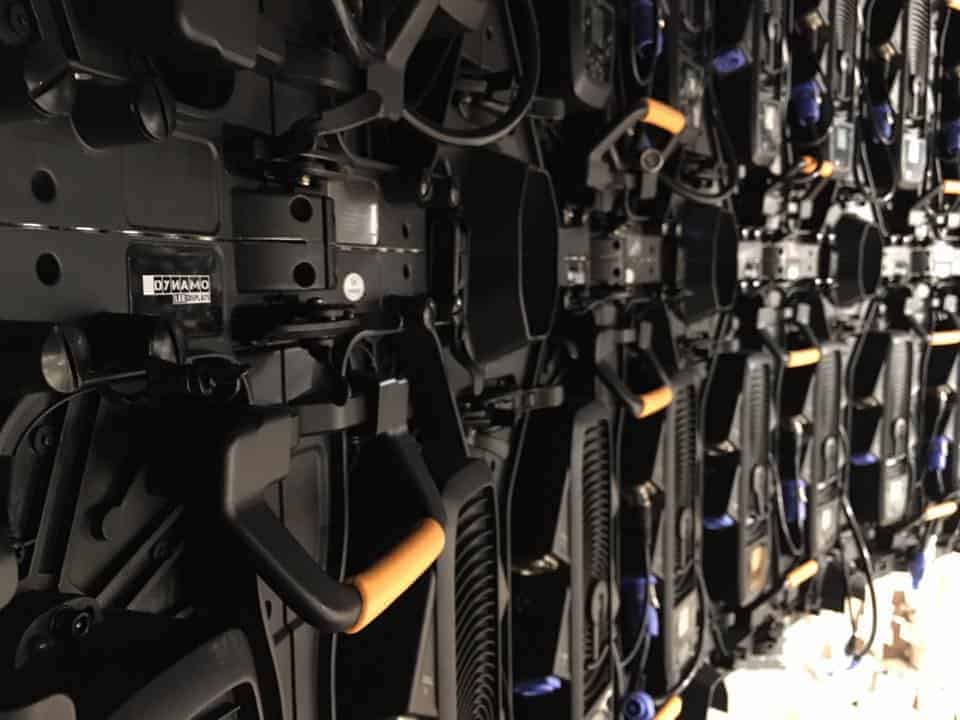
A television panel is cut to hit 3840×2160 because that is what the content ecosystem produces. An LED wall is assembled from cabinets to fit a space, so its pixel count is a consequence of architecture, pitch, and budget rather than a target anyone aimed at. A reception wall sized to a 4.2m structural opening will have whatever resolution the cabinet grid gives it.
This is why “is it 4K?” is usually the wrong question, and why we wrote a full explainer on what 4K actually means on an LED video wall. “4K compatible” on a spec sheet usually describes an input capability; it says nothing about the wall’s physical pixel count. And a 3m-wide fine-pitch wall with 1920 horizontal pixels can look sharper at its design viewing distance than a 6m wall carrying a true 4K count, because sharpness on LED is about pixels per degree of view, not the raw total.
There is a genuine design choice here. If the source material is fixed — broadcast feeds, third-party content, applications that only output standard rasters — it can make sense to size the wall so the cabinet grid lands on a standard pixel count, and let 1:1 mapping do the rest. If the content is commissioned for the wall (brand films, motion graphics, signage playlists), a custom canvas is usually the cleaner option and the wall can be sized to the space. Problems start when nobody makes the choice at all. If you are still at the sizing stage, our LED video wall hub covers the product ranges, pitch options and install formats we build from, and you can rough out a wall size and see the native pixel count fall out of it with the LED screen configurator.
Either way, before any content is commissioned, someone must write down the native canvas — the exact pixel width and height of the finished wall — and circulate it to every party in the content chain. On fixed installations we typically specify our DFC series for premium fine-pitch work; the 1.5mm direct-view display is the usual starting point for close-viewing corporate spaces. The native canvas is fixed the moment the cabinet grid is drawn.
How LED wall content scaling works in the processor

LED wall content scaling is the remapping an LED processor (often sold as an LED controller) performs when a source’s pixel count differs from the wall’s native resolution. The processor interpolates the input raster onto the physical pixel grid. Scaling always costs sharpness: pixel-to-pixel (1:1) mapping is the only lossless option.
The wall itself never scales anything. Cabinets display exactly the pixels the receiving cards deliver, and the processor owns the mapping from input signal to physical pixels. Our LED video wall signal chain explainer walks through every link from playback device to receiving card.
The processor holds a canvas the size of the wall’s native resolution. When the input matches the canvas, the processor passes pixels through one-to-one and the image is as sharp as the wall can physically render. When it doesn’t, the processor interpolates: it invents intermediate pixel values to stretch or shrink the image. Most of the walls we commission run Novastar processing, and both Novastar and Brompton Technology publish detailed documentation on input capacity and canvas mapping. Both make the same underlying point: scaling is a compromise operation, done well or badly, but never free.
Three scenarios cover most real installations:
Source larger than the wall. A 3840×2160 feed into a 1920×960 wall. The processor either scales the whole frame down (acceptable, some fine detail lost) or crops a 1920×960 window from it (pixel-perfect, but you lose the framing). Integer ratios degrade gracefully: a source exactly double the canvas in each axis reduces cleanly, and a source exactly half can be doubled with each pixel becoming a 2×2 block. Fractional ratios — say 0.83:1 — force the scaler to compute every output pixel from its neighbours, which is where one-pixel rules, small interface text and fine diagonals suffer most.
Source smaller than the wall. A 1280×720 feed into a 2560×1280 wall. The processor must invent three new pixels for every source pixel. Text grows halos, diagonal lines stair-step, and gradients band. No processor rescues this; the information simply is not in the signal.
Source aspect ratio different from the wall. This is the one that does the most damage. A 16:9 feed into a 4:1 banner wall either letterboxes (dead space), stretches (distorted logos, wrong-shaped faces) or crops (lost content). None of these is a fix. The fix is content built to the wall’s shape. And note that matching aspect ratio alone does not remove scaling: two 16:9 rasters with different pixel counts still need interpolation.
Two configuration details deserve suspicion. First, EDID: a processor may advertise 3840×2160 to keep laptops on a familiar output while the actual mapped LED area is smaller and sits inside that input canvas. That arrangement can work, but the operator needs the mapped region’s exact size and coordinates. The EDID handshake proves nothing about native mapping. Second, input capacity: every processor has a maximum pixel count it can drive (Novastar’s MCTRL4K, for example, is rated for a maximum load of 8.8 million pixels), so large fine-pitch walls are often split across multiple outputs or units. The Novastar LED processor calculator on our site lets you check whether a given wall size and pitch fits within a single unit’s capacity before the design is locked. Frame rate and cadence are separate decisions again: SMPTE standards cover the motion-imaging side, and the workflow should agree raster, frame rate and timing together.
Briefing content to the native canvas
Once the native canvas is known, the content brief writes itself. These are the rules we issue to content producers on our own installations:
- Author at native resolution. The master render should be exactly the wall’s pixel dimensions. Not “4K then we’ll sort it” — the actual canvas, even if it is an odd size like 2400×600.
- If native isn’t possible, go bigger, in the same aspect ratio. Downscaling a 4800×1200 master to a 2400×600 wall is a clean 2:1 reduction. Upscaling anything is a quality loss.
- Set minimum text heights in physical pixels, not points, and base safe areas on the actual canvas rather than a generic 16:9 template.
- Assign scaling to one device. If the playback system cannot render the native raster, have it output one stable standard format and let a single defined processor do the conversion. Never let the player, switcher and processor each resize the same signal.
- Record the map at commissioning. Source raster, frame rate, processor input canvas, mapped LED area with origin coordinates, the device responsible for scaling, and the aspect-ratio treatment. Nobody can dispute the map two years later.
- Deliver a pixel grid test file. A one-pixel checkerboard with a labelled single-pixel border at native resolution reveals instantly whether the chain is passing 1:1, and whether the edges are clipped. Check the physical wall, not a processor preview window.
The playback device deserves the same scrutiny as the content. A media player set to output 1080p into a 1920×960 canvas is already scaling before the processor sees the signal. Confirm the output resolution at the source, not just the file resolution.
Common scaling failures we see on site
The 1080p default. The most frequent failure. Every laptop, media player and set-top box defaults to 1920×1080, and it silently becomes everything the wall is ever fed, regardless of the native canvas. On any wall whose height is not 1080 pixels, everything is being interpolated all day.
Double scaling. The player scales the file to its output resolution, then the processor scales that output to the canvas. Two interpolation passes where zero were needed. Each stage looks “roughly right” in isolation, which is why it survives commissioning.
Aspect-ratio stretch as policy. Someone ticks “fill screen” on the player to remove letterboxing, and from that day every face on the wall is wider than reality. Circular logos become ovals. It gets normalised because it happens gradually across content refreshes.
Interlaced sources. Broadcast feeds still occasionally arrive as 1080i. Deinterlacing plus scaling compounds artefacts, especially on motion. Request progressive sources wherever the upstream chain allows it.
Every one of these is caught in an afternoon with a native-resolution test grid and a walk of the signal chain. None of them is caught by playing a nice-looking showreel, because showreel footage is designed to look good even when abused.
Recognise your own installation in any of the above, or planning a wall around a specific content raster? Send us the space and the sources or call +44 (0)203 489 9878 and we will map pitch, cabinet geometry and processing before the dimensions are frozen.
From the field: diagnosing LED wall scaling problems
The pattern I see over and over is that scaling problems get blamed on the wall. I get called to look at a “faulty” screen, and the panels are fine — the media player is pushing 1080p into a canvas that was never 1080 pixels in any direction, and the processor has been dutifully smearing it ever since handover. My first move on any soft-image complaint is to put a single-pixel grid up at native resolution. If the grid is crisp, the wall and processor are vindicated in thirty seconds and we go hunting upstream.
I also ask for the content resolution before approving final wall dimensions, and if the answer is simply “4K”, my next question is whether that means a 3840×2160 master, a 4K-capable input, or a requirement for physical 1:1 mapping. Those are three different briefs. My advice to anyone specifying a wall: write the native pixel count into the contract documents, the content brief, and a label on the rack. It costs nothing and it ends the argument before it starts.
LED wall content scaling: frequently asked questions
What is content scaling on an LED wall?
Content scaling is the interpolation an LED processor performs when a source’s pixel count differs from the wall’s native resolution. The processor stretches or shrinks the input raster to fit the physical pixel grid, inventing or discarding pixel values as it goes. Pixel-to-pixel (1:1) mapping, with content authored at the wall’s exact native canvas, is the only way to avoid it entirely.
What is native resolution on an LED wall?
Native resolution is the physical pixel count of the finished wall: pixels per cabinet multiplied by the number of cabinets in each axis. A wall six 500mm cabinets wide at 1.56mm pitch is 1920 pixels across. It is fixed by the build and cannot be changed in software, only mapped to.
Is it better to scale content up or down on an LED wall?
Down, always. Downscaling discards detail but keeps edges clean, especially at whole-number ratios like 2:1. Upscaling forces the processor to invent pixels that were never captured, which softens text and creates stair-stepping on diagonals. If you cannot author at native resolution, author larger in the same aspect ratio.
Why does my 4K content look soft on my LED wall?
Usually because the wall’s native canvas is not 3840×2160, so the processor is rescaling every frame — possibly after the media player has already rescaled it once. Check the player’s output resolution, the processor’s input, and the canvas size. A native-resolution pixel grid test will confirm where sharpness is being lost.
Can a 4K processor make a lower-resolution wall display 4K?
No. It can accept and process a 4K signal, but it cannot add physical pixels to the wall. The processor must reduce, crop or otherwise map the incoming image onto the pixels that exist. “4K compatible” describes the input stage of the chain, not the resolution the wall physically displays.
Does matching 16:9 remove the need for scaling?
No. It only means the source and destination have the same proportions. A 1920×1080 image and a 3200×1800 wall are both 16:9, but their pixel counts differ, so the image must still be enlarged unless it is shown as a smaller unscaled region. Fractional enlargement is exactly where fine text and one-pixel lines suffer.
Should scaling happen in the media server or the LED processor?
In one of them — never both. Rendering natively in the media server is usually preferable for custom graphics; for mixed presentation sources, the processor is the sensible single scaling point. The failure mode is enabling scaling independently in both devices, so the signal is resampled twice before it reaches the wall.
How do you test an LED wall for scaling errors?
Use a native-resolution test file containing a one-pixel outer border, labelled corners, alternating pixel patterns, small text and fine diagonals. Check the physical wall, not just a software preview. A missing border indicates cropping or offsets; uneven line weights and shimmering patterns indicate scaling somewhere in the chain.
Getting the pixels right from day one
LED wall content scaling comes down to writing down one number — the native canvas — and holding every link in the chain to it. Build the wall to the space, derive the resolution from the module maths, configure the processor to that canvas, assign any unavoidable scaling to a single device, and brief content at those exact dimensions. Do that and the wall spends its life displaying pixels one-to-one instead of interpolations of interpolations.
If you are planning an LED wall and want the native resolution, processor capacity and content scaling workflow specified properly from the start, we do this on every installation we deliver. Call us on +44 (0)203 489 9878 or send the project details through our contact page and we will map the pixels properly before a single cabinet is ordered.