Specifying an LED video wall should take minutes, not half a day. But anyone who has tried to turn “we want a big screen on that wall” into a real spec sheet knows how quickly it spirals: pixel pitch tables, processor capacity limits, cabinet dimensions that don’t divide cleanly, power circuit sizing, cabling runs, weight calculations. By the time you’ve cross-referenced four datasheets and two spreadsheets, the afternoon is gone.
Today we’re launching the Dynamo LED Configurator — free, no sign-up, no paywall. It takes you from blank screen to a complete LED wall specification in under five minutes: cabinet layout, processor match, full kit list, power requirements, cabling diagram and a downloadable PDF. You can fill in your details at the end if you want us to follow up, or just hit Download PDF and walk away with the spec.
Try it now: configurator.dynamo-led-displays.co.uk
Why We Built It
We kept spending hours on the same calculation. An integrator would phone up and say “we need a 4-metre-wide wall for a boardroom — what do we actually need?” — and we’d disappear into a spreadsheet to work out the cabinet count, check processor capacity, size the electrical circuit, count the Ethernet runs, and pull together a spec PDF. The maths isn’t hard. It’s just repetitive, and every project needs the same sums done from scratch.
So we built a tool that does it all automatically. Not a quote generator — we’re not hiding pricing behind a form. This is a genuine engineering tool that gives you the technical spec you need to make a decision, talk to your electrician, or hand to a client. We use it internally for every enquiry now. It seemed daft not to share it.
The other reason is more practical. Integrators and AV teams kept asking us the same questions: “What processor covers this resolution?” / “How many amps will this wall pull?” / “What’s the closest broadcast standard to this pixel count?” We answer those questions five times a week. The configurator answers them instantly — at 2am on a Sunday if that’s when you’re prepping for a Monday pitch.
What It Does
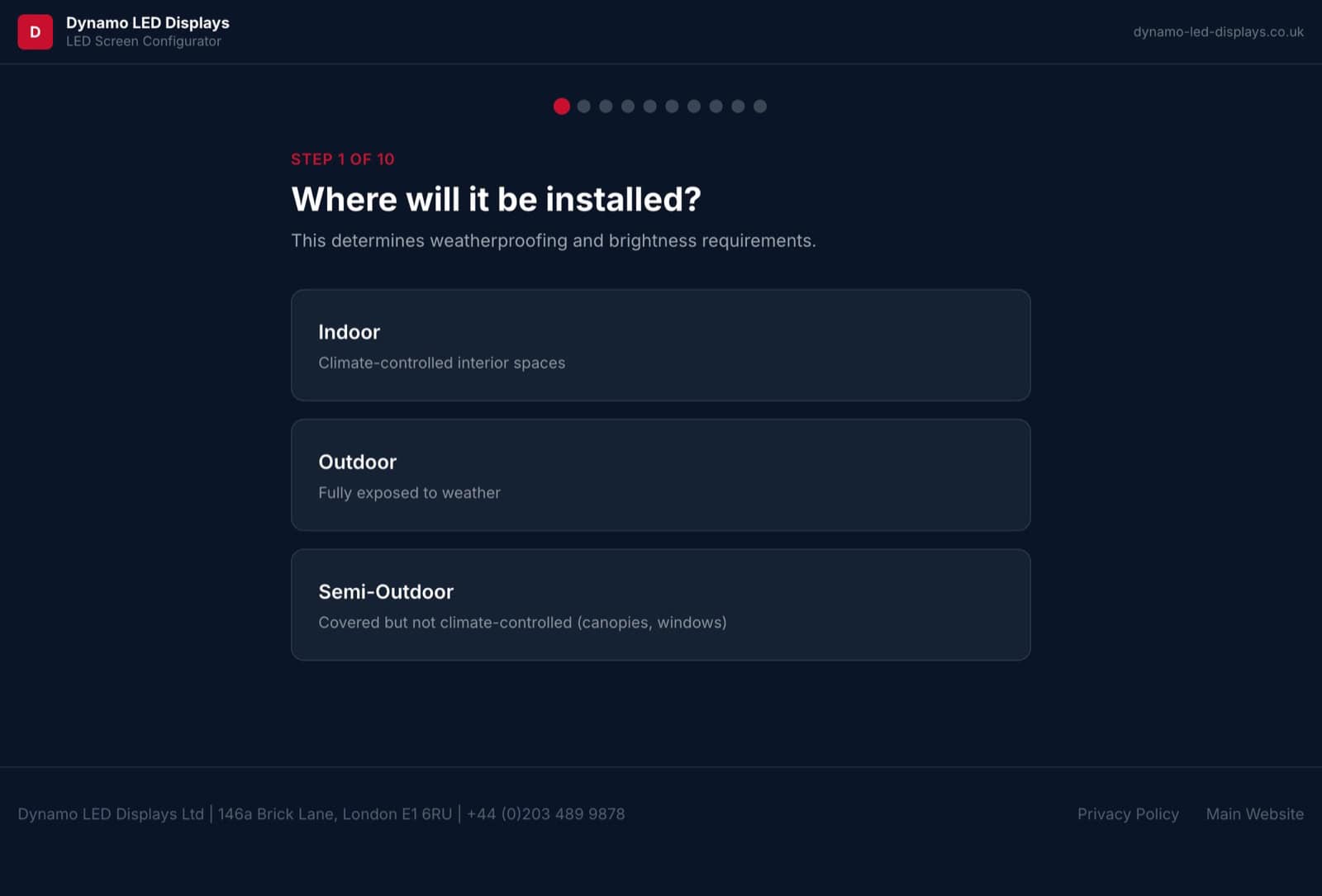
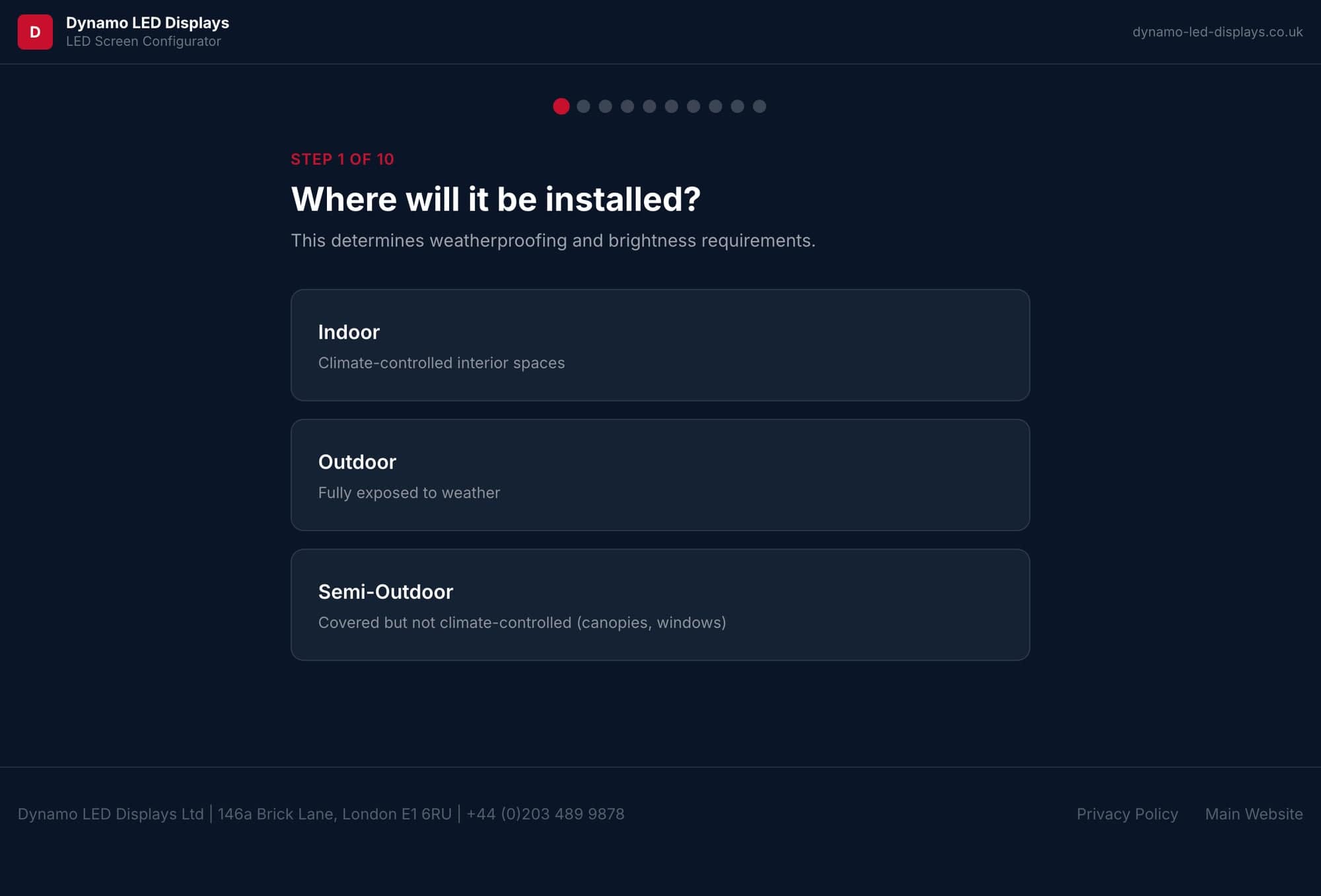
The configurator walks you through a 10-step wizard. You tell it where the screen goes, how big it needs to be, who’s looking at it and from where. It handles the rest. Here’s what comes out the other end.
Pixel Pitch Picked from Viewing Distance
Step 3 asks how far away your viewers will be. The configurator recommends a pixel pitch based on that distance using the standard 1-pixel-per-millimetre-per-metre rule — close-up retail at P1.5, conference rooms at P1.9–P2.5, outdoor advertising at P5+, stadium screens at P8 or above. You can override the recommendation if you’ve got a reason to, but it stops integrators from over- or under-speccing pitch (the most common failure mode in dvLED quoting).
Build a Screen from Any Standard Cabinet
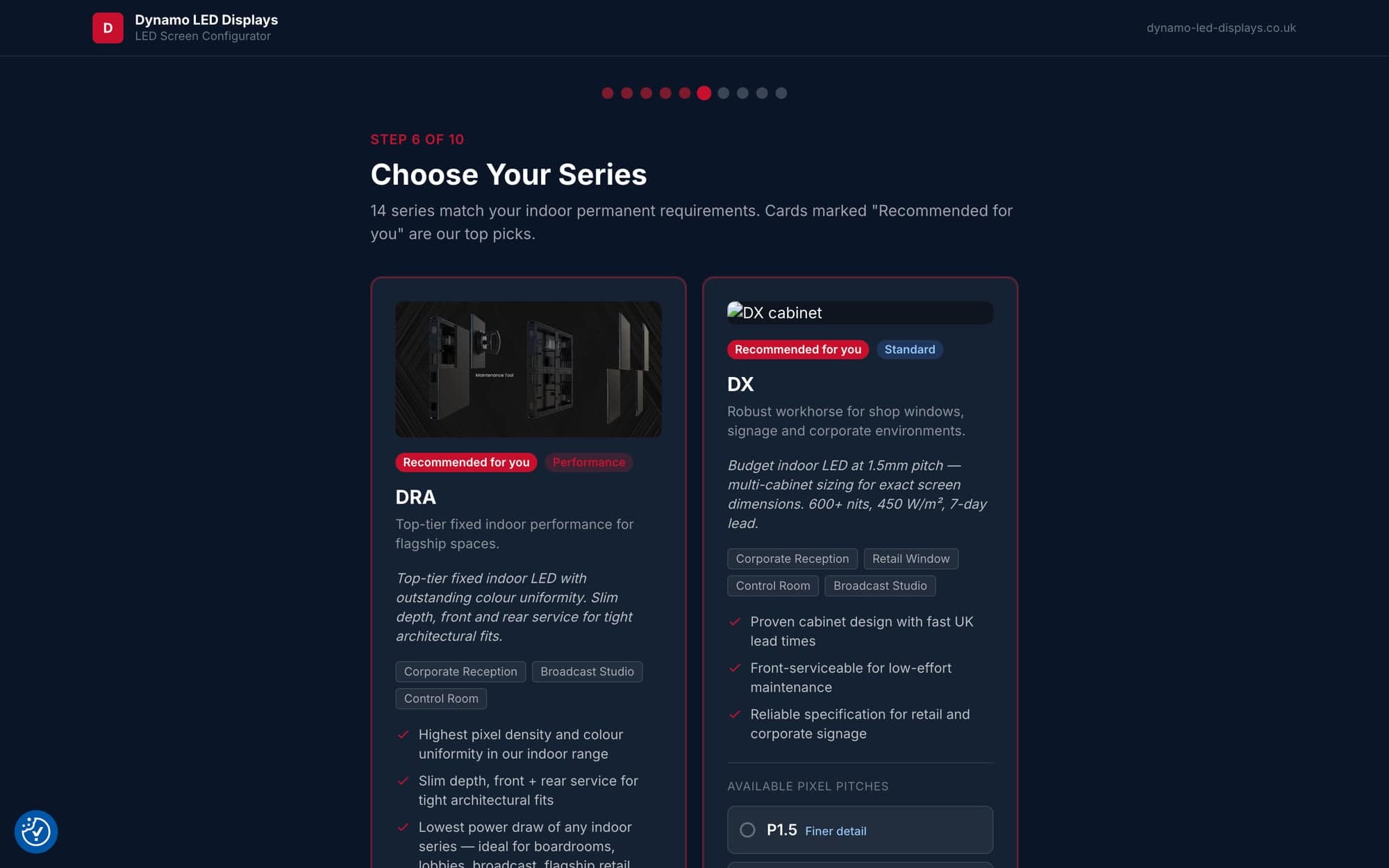
Pick from Dynamo’s full cabinet range (indoor, outdoor, rental, fine-pitch, transparent, COB) and the configurator works out the optimal layout for your dimensions. Each series card shows you the tier (Flagship, Performance, or Standard), what it’s best for, and which pixel pitches are available. Series matching your application are flagged “Recommended for you” so you start in the right ballpark.
Don’t use Dynamo cabinets? No problem.
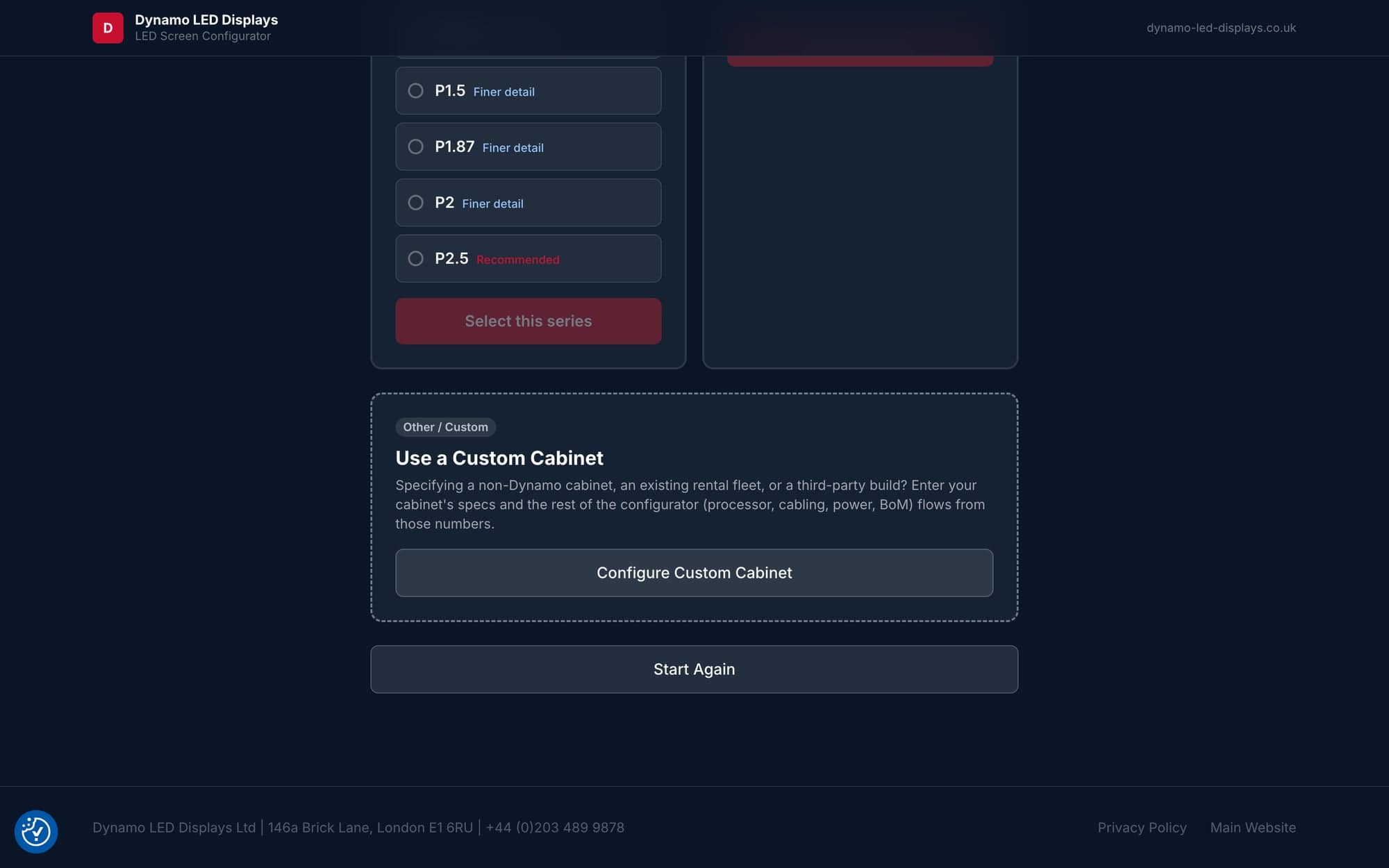
There’s a custom cabinet option: enter your cabinet’s physical dimensions and pixel count, and the configurator builds the spec from those numbers. Processor matching, cabling, power — it all flows from whatever cabinet you feed in. We built this for integrators who already have rental stock or are working with a third-party panel supplier and just need the rest of the spec.
Upload a Photo, Get a Mockup
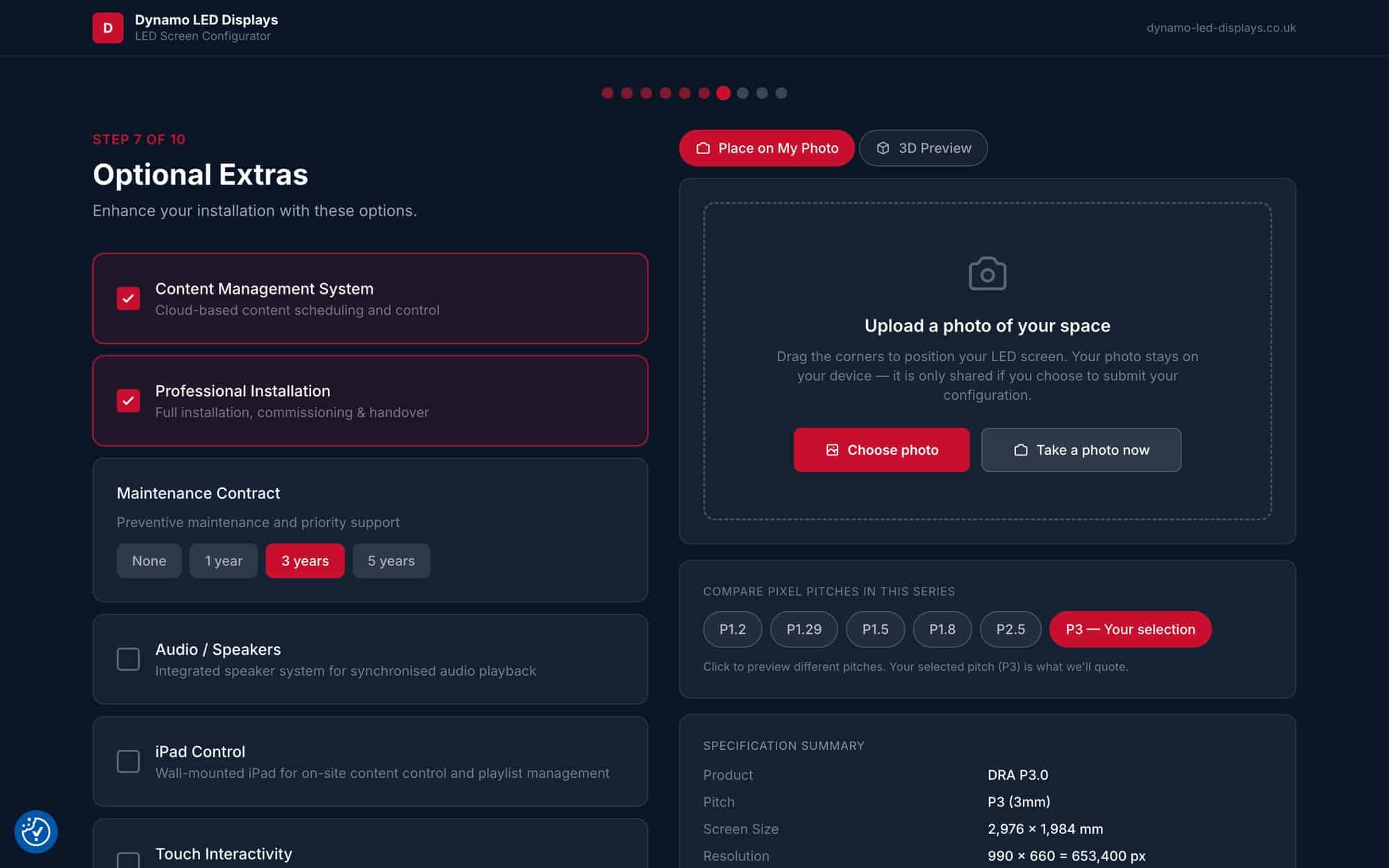
This is the one that surprises people. Upload a photo of the actual space (the boardroom wall, the reception area, the stage backdrop) and the configurator places a to-scale mockup of the LED wall into your image. You can see how the screen looks at the size and pitch you’ve configured, in the actual room it’s going into. Not a CAD render — a quick visual that’s accurate enough to put in a proposal or send to a client who needs to see it before they’ll commit.
The “Place on My Photo” panel sits alongside the main configurator from Step 6 onwards. Upload once, and it updates live as you change dimensions or pixel pitch.
A Live 3D Preview With a 1.75m Person for Scale
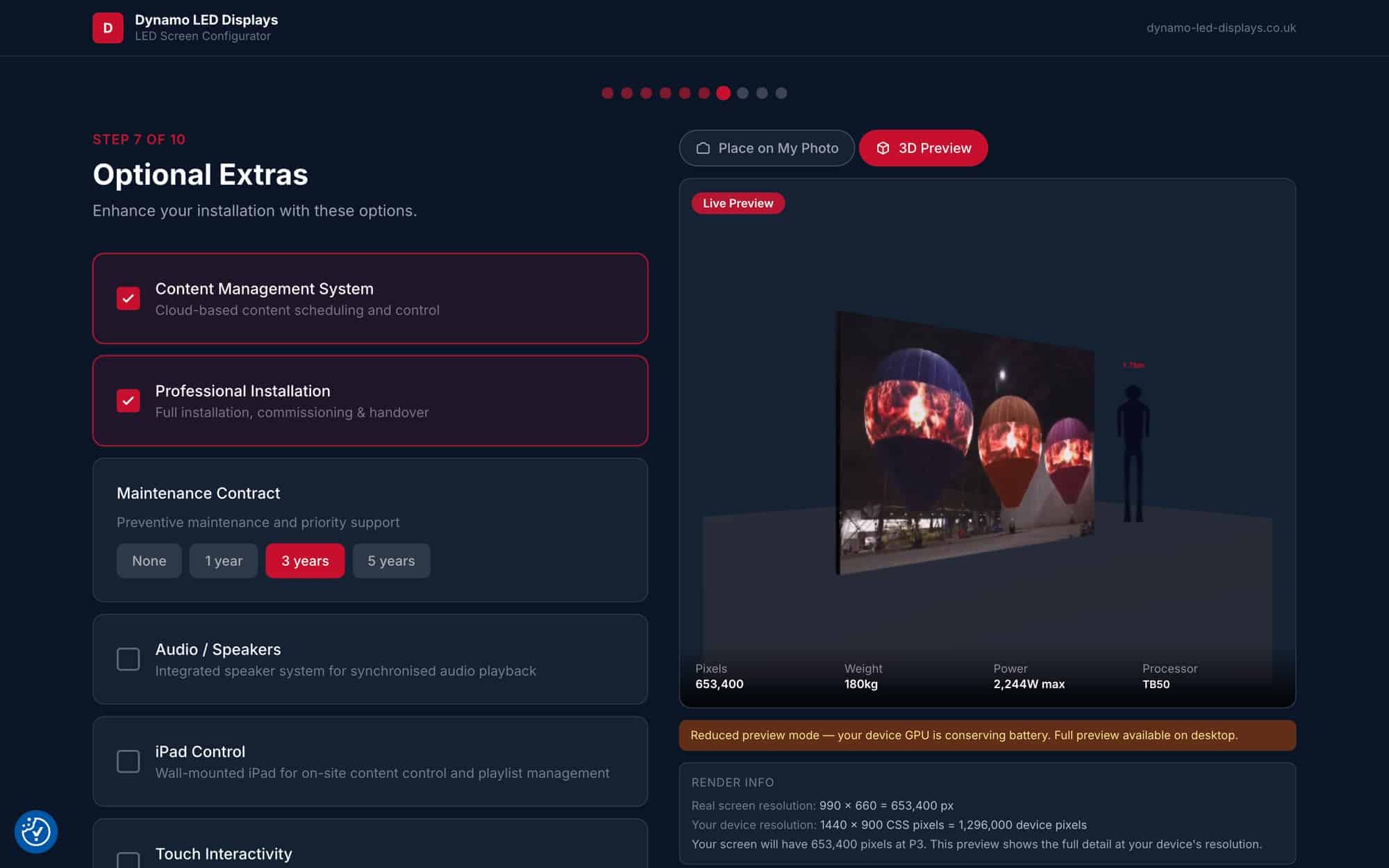
If you haven’t got a photo of the space yet, the 3D Preview shows the wall at its real size against a 1.75m human silhouette. It’s the same view you’d build in SketchUp to sense-check scale, except it’s there in two seconds without anyone opening SketchUp. Spinnable, zoomable, accurate.
Total Resolution and Closest Broadcast Standard
The configurator calculates your screen’s total pixel count (width × height) the moment you set dimensions and pitch. It also flags the closest broadcast standard — so if your 3m × 1.7m wall at P1.9 comes out at 1,578 × 894 pixels, you’ll see that against 1080p. Useful when the content is coming from a broadcast feed or a media server outputting at a standard resolution.
Matched NovaStar Processor
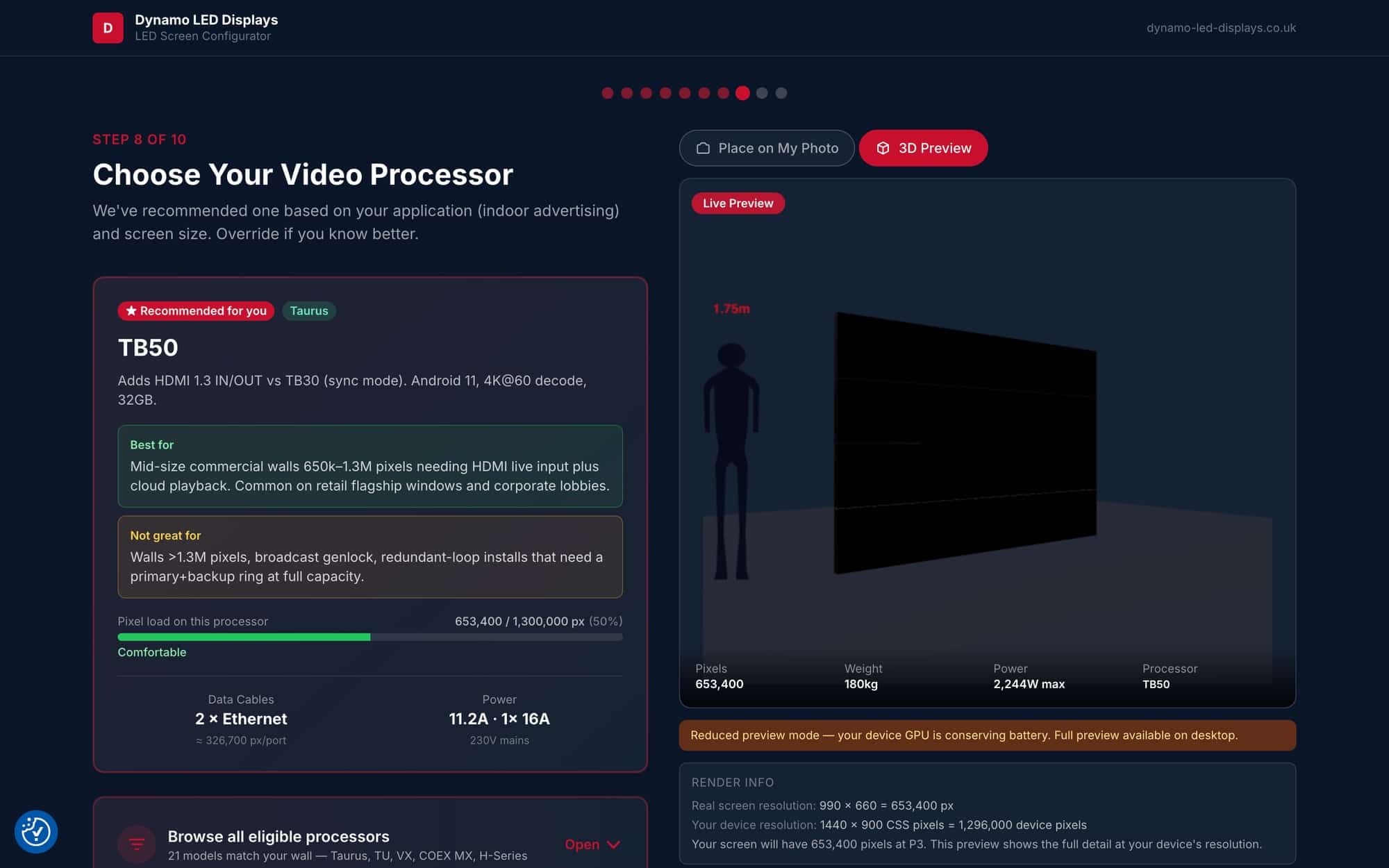
This is where most spreadsheets break down. The configurator knows the current NovaStar processor families (Taurus TB, Taurus TU, MCTRL, VX, H-Series, Coex CX, Coex MX) and recommends the right unit based on your pixel load, application type, and whether you need features like genlock or zero-frame latency for broadcast.
You’ll see a recommended processor highlighted with a pixel-load gauge showing headroom — how much capacity is left if the wall grows. Don’t agree with the recommendation? Expand “Browse all eligible processors” and pick from every compatible unit, grouped by family with capacity indicators.
For the full breakdown of what each processor family does and when to use it, read our NovaStar LED processor buyer guide.
Full Kit List
The final summary gives you an itemised bill of materials: LED cabinets (with exact count and breakdown), video processor, input data cables, cabinet-to-cabinet link cables, power distribution, and any optional extras you ticked (content management system, professional installation, maintenance contract, audio, touch interactivity). It’s formatted to be shared — copy it into a proposal, paste it into an email, hand it to procurement.
Power Requirements, Stated in Plain Numbers
The configurator calculates total power draw from the cabinet spec and tells you the circuit requirement in the language an electrician actually uses. You’ll see total wattage, total amps, and the 16A circuit count side by side. If your wall needs 17.7A across two 16A circuits, it says so. No more guessing whether the existing ring main can handle it or whether you need a dedicated feed run in.
Cabling Topology
The specification PDF includes a visual cabling diagram showing how data cables run from the processor to the LED wall. Each coloured path is one daisy chain driven by a single Cat6 input cable from the processor. You can see exactly how cabinets link together, from input cables to link cables to total run count, and hand that diagram to your AV installer or cabling contractor.
The configurator also breaks cabling into a clear formula in the kit list: total cabinets minus input cables equals link cables. For a 24-cabinet wall driven by a 6-port processor, that’s 18 cabinet-to-cabinet link cables.
A One-Page Spec PDF You Can Send to Anyone
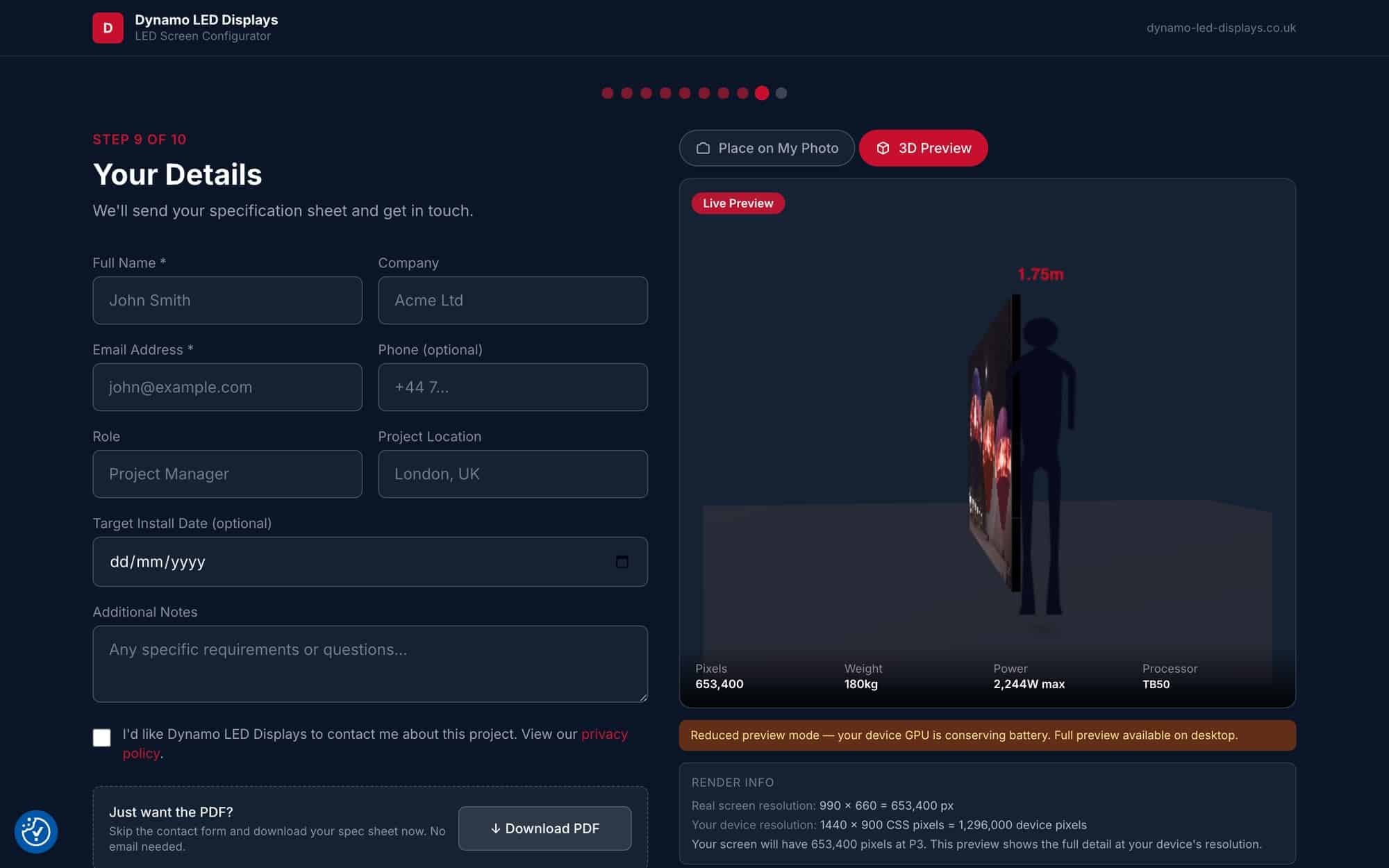
Hit Download and you get a PDF covering everything: screen dimensions, resolution, cabinet layout, processor, full bill of materials, power requirements, and the cabling diagram. Professional, share-ready. Send it to your client, your AV integrator, your facilities team, or your electrician. No Dynamo login, no email gate. The PDF is yours.
Try it now: configurator.dynamo-led-displays.co.uk — no sign-up, no paywall, just the tool.
Who It’s For
We built this for anyone who needs to spec an LED wall without losing half a day:
- AV integrators speccing dvLED for clients — get from enquiry to technical spec in minutes, not hours. Pair it with our LED buying guide for the broader picture.
- In-house AV and facilities teams evaluating whether LED is feasible for a space and what the technical requirements actually look like.
- Production companies and hire desks sizing screens for events and tours — if you need rental LED, we also do LED screen hire directly.
- Architects and interior designers exploring LED feasibility early in a project, before bringing in an integrator.
- End clients who’ve received a quote and want to sense-check the spec independently.
What It’s Not
We’d rather be upfront about the edges:
- Not a quote. It gives you a complete technical specification — not a final price. Quotation needs a conversation about lead times, installation complexity, site access and warranty terms.
- Not a CAD tool. It won’t produce construction drawings or replace AutoCAD. It gives you the spec to brief the people who do that.
- Not a substitute for a site survey on complex jobs. Curved walls, unusual mounting situations, structural loading questions — those need a site visit.
- NovaStar-only on the processor side for now. Brompton support is next on the roadmap. If you spec another brand regularly and want it covered, tell us.
How It Came Together — A Note from Daniel
I started this because I was tired of the spreadsheet. Every LED enquiry followed the same pattern: open the cabinet datasheet, calculate the module count, check the processor capacity table, work out the power draw, count the Ethernet runs. The maths never changes — only the inputs do. That’s exactly what a tool should handle.
What surprised me was how many edge cases appear once you try to support the full product range. Curved cabinets need different layout logic. Multi-size cabinet series (like our DX range) need a solver that optimises which combination of panel sizes fills the wall most cleanly. The processor recommendation engine has to account for pixel load, but also application type — a broadcast wall needs genlock capability even if a cheaper processor has enough pixel headroom.
We’ve been using the configurator internally for a couple of months. It handles roughly 80% of enquiries without anyone opening a spreadsheet. The remaining 20% are the genuinely complex jobs (multi-screen installations, creative-shaped walls, XR stages) where you still need a human with a site visit. That feels about right.
What’s next: Brompton processor support, more detailed mounting hardware recommendations, and a comparison mode that lets you see two configurations side by side. No promises on dates. We’ll ship it when it’s solid.
— Daniel Reynolds, Founder, Dynamo LED Displays
Help Us Improve It
This is the bit we genuinely mean. The configurator is built from real-world project experience, but we haven’t seen every scenario. If you run a configuration and something feels off — processor recommendation doesn’t match your experience, power calculation seems wrong, a cabinet series is missing — tell us.
If you try it and it breaks, tell us that too. If you wish it did something it doesn’t do yet, we want to hear that. This is a tool for the industry, and the industry knows things we don’t.
Drop a line to sales@dynamo-led-displays.co.uk — or leave a comment below.
Try It
configurator.dynamo-led-displays.co.uk — free, no sign-up, works on desktop and mobile.
If you want the deeper technical dive on processor families, read our NovaStar LED processor buyer guide.
Build a spec. Break the tool. Tell us what’s missing.